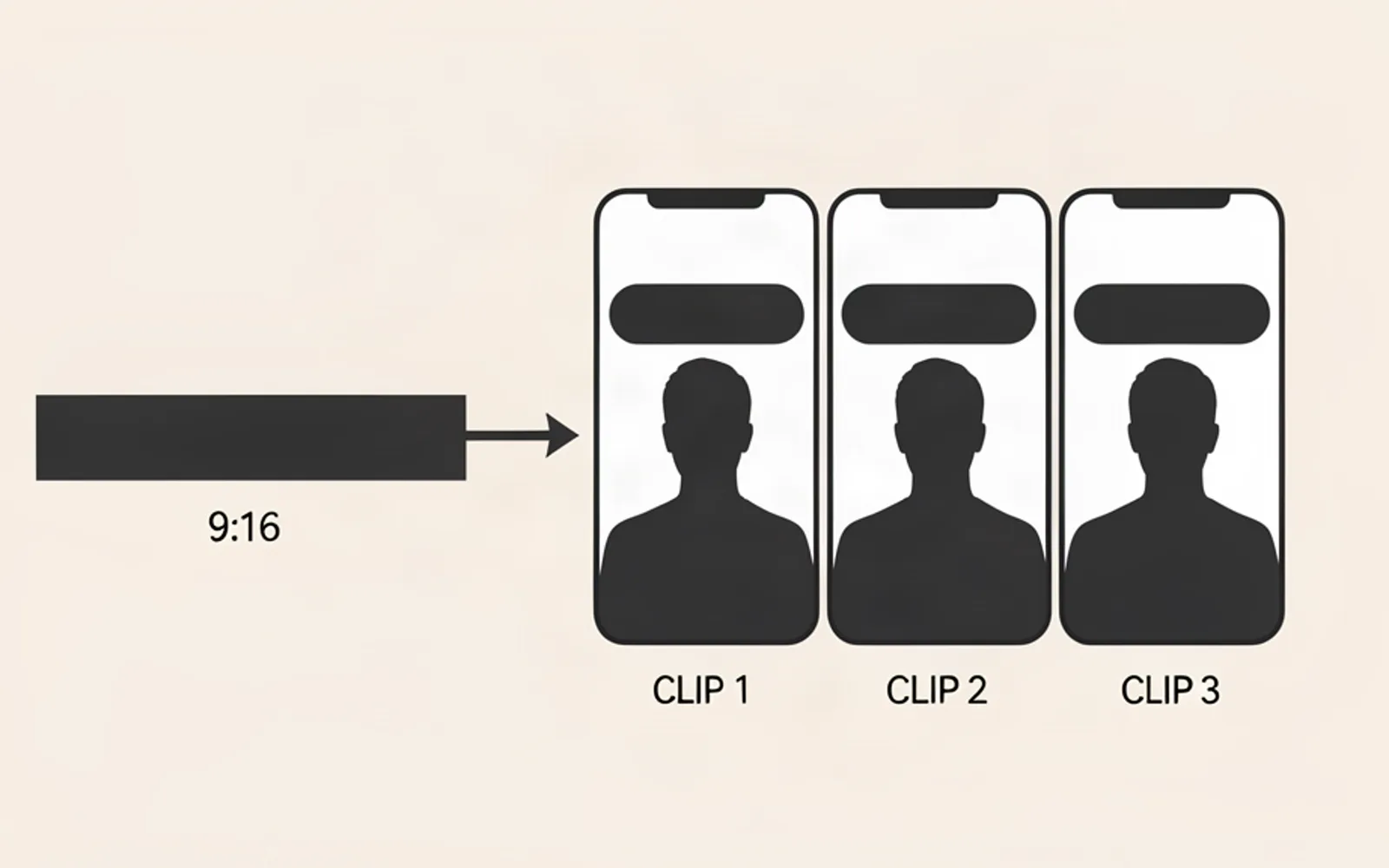
Batch editing clips in CapCut comes down to one rule: set the frame, the caption style and the export preset once, in a project you reuse for every clip, instead of starting a new project per clip. The speed tricks - proxies, shortcuts, a naming convention - come after. What decides whether clip ten still matches clip one is where the layout decision lives. Here is the setup that avoids taking the same four decisions fifteen times, the two moments where it breaks under campaign volume, and the ceiling of any workflow organised clip by clip.
Why a timeline stalls at clip three, not clip ten
A single editor cuts a single clip beautifully. The trouble starts when the work arrives as a batch, because a timeline-based editor is organised around the clip: one project, one sequence, one export. That model is right for a film and expensive for a campaign.
One NLE user group thread this week was nothing but this: an editor holding 80 clips, each trimmed to 10-30 seconds, that also had to land in specific spots on a timeline. Nothing about that job is difficult. All of it is repeated. The frame is set again, the caption style reapplied, the export preset re-chosen, the file renamed - eighty times, and every repetition is a place where two clips quietly stop matching.
Campaign work makes this worse in one precise way: the clips are shorter and more numerous. A 40-minute documentary is one timeline. A week of campaign output is fifteen timelines of thirty seconds, and each one carries the full setup cost.
The arithmetic is uncomfortable. If your setup pass takes four minutes - a frame, a caption style and an export preset usually do - then on a thirty-second clip the setup dominates, and across fifteen clips you have spent an hour taking the same four decisions. That hour produces nothing anyone will ever see on screen.
The spec sheet is not yours to choose
Before any setup, the campaign decides what finished means, and it decides it campaign by campaign. The vertical canvas is the one constant: every Shorts app expects a phone-shaped video, and Instagram documents accepted reels anywhere between 1.91:1 and 9:16, with a minimum of 720 pixels and 30 fps (Instagram help centre). YouTube counts a Short view the moment playback starts, with no minimum watch time (YouTube Help), which is why a hook that works in the first two seconds is a paid condition rather than a matter of taste.
Everything else moves between campaigns: the length band (10-30 seconds in one, 30-60 in another), whether captions are burned in or delivered on a separate track, whether a watermark is an instant rejection, the file naming the operator expects.
What that means for your CapCut project: the things you were treating as style are contract terms. A caption font you like is fine until a campaign specifies a placement and the app interface covers it.
1080 x 1920the vertical canvas every Shorts app expects
That canvas is 9:16 at full definition; Instagram's documented minimum is 720 pixels wide, so nothing lighter is worth uploading.
If you run more than one campaign at a time, the spec sheets multiply, and so does the cost of getting one wrong: a clip that misses the brief is a clip that does not get paid. The failures are regular enough to list - wrong length band, captions sitting in the interface zone, a crop that cuts a second speaker out of frame. Why campaign clips get rejected collects the ones operators name most often.
One project, reused: the setup that makes a batch possible
The pattern that holds is counter-intuitive: instead of one project per clip, keep one project for the whole run and change only what actually differs.
- Build one template project at 1080 x 1920 and place guides where the phone interface sits.
- Set the caption style once - font, size, weight, and a position inside the safe band, not near the bottom edge.
- Create one export preset: vertical, the campaign's bitrate, and a file name pattern carrying the campaign name and a counter.
- Import the whole batch at once and keep each clip on its own track or in its own locked group, so replacing clip 3 never disturbs clip 2.
- Work the clips in one pass, then run a single batch export at the end.
Two details decide whether this holds. First, the caption position has to be a property of the template, not of a clip: the moment you drag a caption bar on one clip, you have signed up to make that decision fifteen more times. Second, the export has to leave as one batch. Exporting clip by clip reintroduces the per-clip decision, and that is also where naming drift starts.
What this buys you is not speed first, it is sameness. Every clip inherits the same frame, the same caption placement, the same absence of a watermark. Sameness is invisible while it is there and expensive when it is missing. How to batch edit clips takes the same pass one level deeper, and the safe-zone crop covers the framing side.
The two places it still breaks
1. Captions are generated per clip. Automatic captioning depends on an audio track, a language setting and cloud processing, and CapCut's own support documentation lists the failure modes: poor audio quality, the wrong language selected, an unstable connection, an outdated build (CapCut help). Across a batch that means captions arrive at a different moment for every clip, and a caption that fails on clip 9 is only visible after you uploaded it. So you re-check caption delivery clip by clip - the per-clip pass you were trying to remove.
2. Framing is decided per sequence. In a sequence-based editor the frame size belongs to the sequence and the crop follows it (Adobe Premiere help). That is a quality: it lets you frame a shot precisely. It is also why clip 4 and clip 11 can end up with slightly different crops of the same speaker - same source, two decisions, two results. On a campaign, that difference is exactly what an operator reads as inconsistency.
Consistency is the part a shortcut cannot fix
A keyboard shortcut shortens a clip. It does not make two clips agree. The structural point is that in a timeline-based editor the clip is the unit of work: every clip is opened, decided and exported on its own, so the batch has no memory. Nothing in the tool knows clip 7 belongs with clips 1 to 15, and therefore nothing stops clip 7 from being framed, captioned and exported differently.
You feel this as a review pass: you produce fifteen clips, then open fifteen clips to check that they match. That second pass is not slowness, it is inconsistency tax - work created by the tool's unit of organisation rather than by the job.
This is the half of the problem a production line exists for. In ClipFinish's clip production line the layout belongs to the batch, not to the clip: you set one framing and one caption style for the whole run, and no clip in the batch can fall out of it. The zones where the phone interface sits are reserved before anything renders, so a caption cannot land under the account name. You do not edit a clip; you read the transcript, pick the moments worth taking, and the run comes back finished.
What it does not do, said plainly: it does not pick the moments for you - that decision stays yours, and it is the one worth keeping. It does not choose your campaign or read a brief in your place. It takes up to two hours of source per video, and it does not publish or schedule anything. Keeping captions consistent across clips covers the style-drift half of this in detail.
Questions clippers ask before they set up a batch
- How many clips can I batch in one CapCut project?
- As many as your machine previews comfortably - the limit is hardware, not the editor. The real ceiling is attention: in a long single pass, the consistency checks become the bottleneck rather than the render.
- Why do my captions move to a different place on some clips?
- Because caption position is a property of the clip, not of the project. A caption you drag by hand stays where you dragged it on that clip only; a style set at project or template level is the only way to apply a position to the whole batch.
- Is 9:16 mandatory for campaign clips?
- For TikTok, Reels and Shorts, yes in practice. Instagram documents reels anywhere between 1.91:1 and 9:16 with a 720-pixel minimum, but campaign briefs almost always specify vertical, and a non-vertical delivery is routinely refused.
- What is the fastest way to check a batch for consistency?
- Watch every clip muted, at speed, in one sitting, looking at three things only: crop, caption placement, length. That finds almost every drift in a single pass, and it is far cheaper than finding it after posting.
What to keep: one template project, one caption style set at project level, one export preset, one batch export. That gets you a run of clips that match, which is the part a campaign actually pays for.
What no timeline removes: the clip is still the unit of work, so the batch has no memory, and the consistency pass stays on you. If the run is going to be fifteen clips a week rather than five, that is the cost worth removing first - starting with ClipFinish's clip production line, where framing and captions are set once for the whole batch and the only call left to you is the one that genuinely is yours: which moments are worth taking. Five free minutes of finished clips a month, no card, is enough to test it on a real batch.