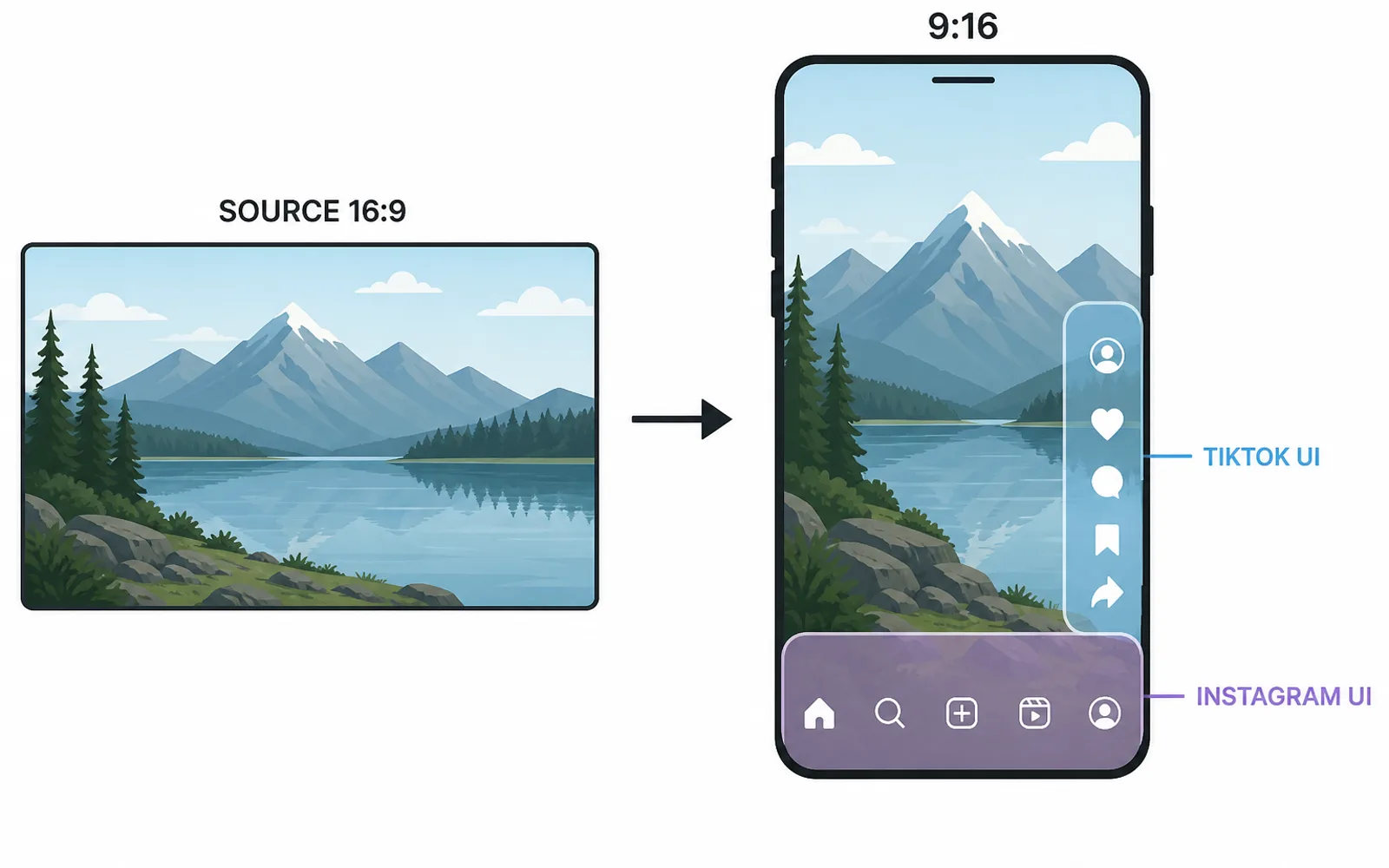
When you reframe a 16:9 shot into a vertical 9:16 clip you are choosing a tall, narrow window — but the finished frame is not yours alone. TikTok, Instagram and the other apps draw their own menus, action buttons and text over part of it, and they do not reserve the same pixels. A crop that clears TikTok's interface can put your key content exactly where Instagram's overlays sit. This article explains what actually differs and how to reframe once so a whole batch survives each platform.
Reframing to 9:16 is a crop and a platform problem at once
Take a landscape 16:9 source and ask for vertical: you crop to a 9:16 window, and the first instinct is to decide what to keep in frame — usually the speaker or the action, which is the subject-tracking that automatic reframing handles. That crop is only half the work, because the clip you deliver does not play on a blank screen. It plays inside an app that layers its own chrome over the video: the engagement rail, the creator's handle, the caption, the sound title, the share button.
What most editors learn late is that the visible frame is a shared space. The moment you assume a vertical clip is simply a portrait crop of the landscape shot, you start placing your own text and key visuals as if the whole screen were yours — and then the platform covers part of them. The deliverable is not “a 9:16 clip”. It is a 9:16 clip with essential content kept inside the area that no app will cover. So the real question when you reframe is not only “what do I keep?”, it is “what will sit on top of it once it is live?”.
TikTok and Instagram do not reserve the same pixels
Both TikTok and Instagram Reels are 9:16, and that shared ratio is exactly why the difference is easy to miss. The video is the same shape; the interface drawn on top of it is not.
TikTok puts its engagement actions (like, comment, share, bookmark) and the sound information along the right side, with the creator's handle, caption and sound name at the bottom. Its own help documentation on safe zones makes the point that there is no single pixel-perfect safe zone — it shifts with caption length and ad format — and that the reliable rule is to keep main creative elements central so the UI does not obstruct them. Meta gives the same advice from the other direction: its safe zone guidance for Reels and Stories tells you to keep the edges — top, bottom and sides — free of key text, logos and calls to action so the profile icon and CTA never cover them.
Because the reserved areas are different sizes and sit in different places, a piece of text that is comfortably safe at the bottom of a TikTok can land exactly under an Instagram caption or action bar, and content cleared on the right for TikTok can sit under Reels elements. If you only deliver to one platform the fix is easy. The moment the same source has to go to both, “a safe crop” does not exist — there is a TikTok crop and an Instagram crop, or a single conservative frame that keeps everything important inside the overlap of the two safe zones.
Framing this clip by clip is how a batch quietly drifts
The clean-single-clip case hides the real cost, which shows up in a batch. When you cut several clips from one source for both platforms, every clip has a different composition: the subject is larger in one, a caption runs longer in another, a graphic sits lower in a third. So the framing that cleared Instagram's UI on clip one is not the framing that clears it on clip seven — the same bottom-safe line that was fine in the first clip ends up covered in the last.
The way this usually gets fixed is by eye and per clip: check the clip on a phone, see the text hiding under a button, nudge the crop or the text a few pixels, check again. Do that across ten clips and two platforms and you are re-doing the same judgement twenty times, slightly differently each time — which is exactly the kind of finishing work that turns a short clip job into a long one, as where editing time actually goes shows. This is related to, but not the same as, caption placement: that is where on-screen text sits once the frame is fixed. This is the earlier decision — how the crop itself leaves room for each platform's UI.
Reserve each platform's zone once, then frame the batch to it
The fix that scales is to stop looking at each clip twice and instead declare, once, how much of each platform's frame is off-limits, then frame every clip so its essential content stays inside the safe overlap.
- Define a reserved zone for TikTok and a reserved zone for Instagram (their shapes differ).
- Decide whether you need per-platform versions or one conservative frame inside the overlap of both.
- Keep subject, captions and CTAs inside that zone on every clip — never below the bottom edge, never under the action rail.
Once that rule is fixed, the reframe stops being a judgement you repeat per clip and becomes a rule applied to all of them. You keep the genuinely creative call — which moments are worth cutting, the judgement covered in which moments to clip — while the machine holds the same reserved zone across the whole batch. That is the direct use of ClipFinish's automated framing: configure the reserved zone per platform once, and every clip in the lot is framed to that same rule — a single consistent look, nothing re-set clip by clip, and nothing important left under a button.
An honest limit: a reserved zone cannot save a subject you never framed. If the source is so wide that cropping to vertical cuts the speaker off mid-frame, no safe-zone setting fixes it — you still need a crop intent and subject tracking first. What the reserved zone removes is the mechanical part of the job: deciding, over and over, how far from the edge is safe for this particular platform.
Frequently asked questions
- Are the safe zones the same on TikTok and Instagram?
- No. Both are 9:16, but the apps overlay different chrome. TikTok draws engagement actions and sound info on the right and handle, caption and sound name at the bottom; Instagram and Reels follow Meta's guidance to keep the edges free of key text and CTAs. The reserved zones are not aligned.
- Do I need a separate vertical clip for TikTok and for Instagram?
- If essential text or CTAs must stay un-covered on both, yes — or one conservative frame that keeps everything inside the overlap of the two safe zones. If nothing important sits near the edges, a single clip works for both.
- Why does my text get covered on Instagram but not on TikTok?
- Instagram's reserved zone is in a different place than TikTok's. Bottom-safe text on TikTok can sit exactly where an Instagram caption or action bar appears. Check each clip against the zone of the platform that will actually show it.
- Does auto-reframing handle platform safe zones?
- Auto-reframing keeps the subject in frame through the vertical crop. Keeping text and CTAs clear of a specific platform's UI is the separate reserved-zone decision, done once per platform and applied to the batch.
The lesson of every covered caption and hidden CTA is the same: a 9:16 crop is not finished when it is vertical, only when it is vertical for the platform that will show it. Because TikTok and Instagram reserve different zones, the reliable move is to decide the reserved zone for each platform once and then frame every clip to it, instead of nudging each crop against the UI by eye.
That is exactly the job ClipFinish's automated framing is built for: you configure a reserved zone per platform in advance and the whole batch comes out framed to the same rule — one look, no clip-by-clip re-setting, and nothing important hiding under a button.