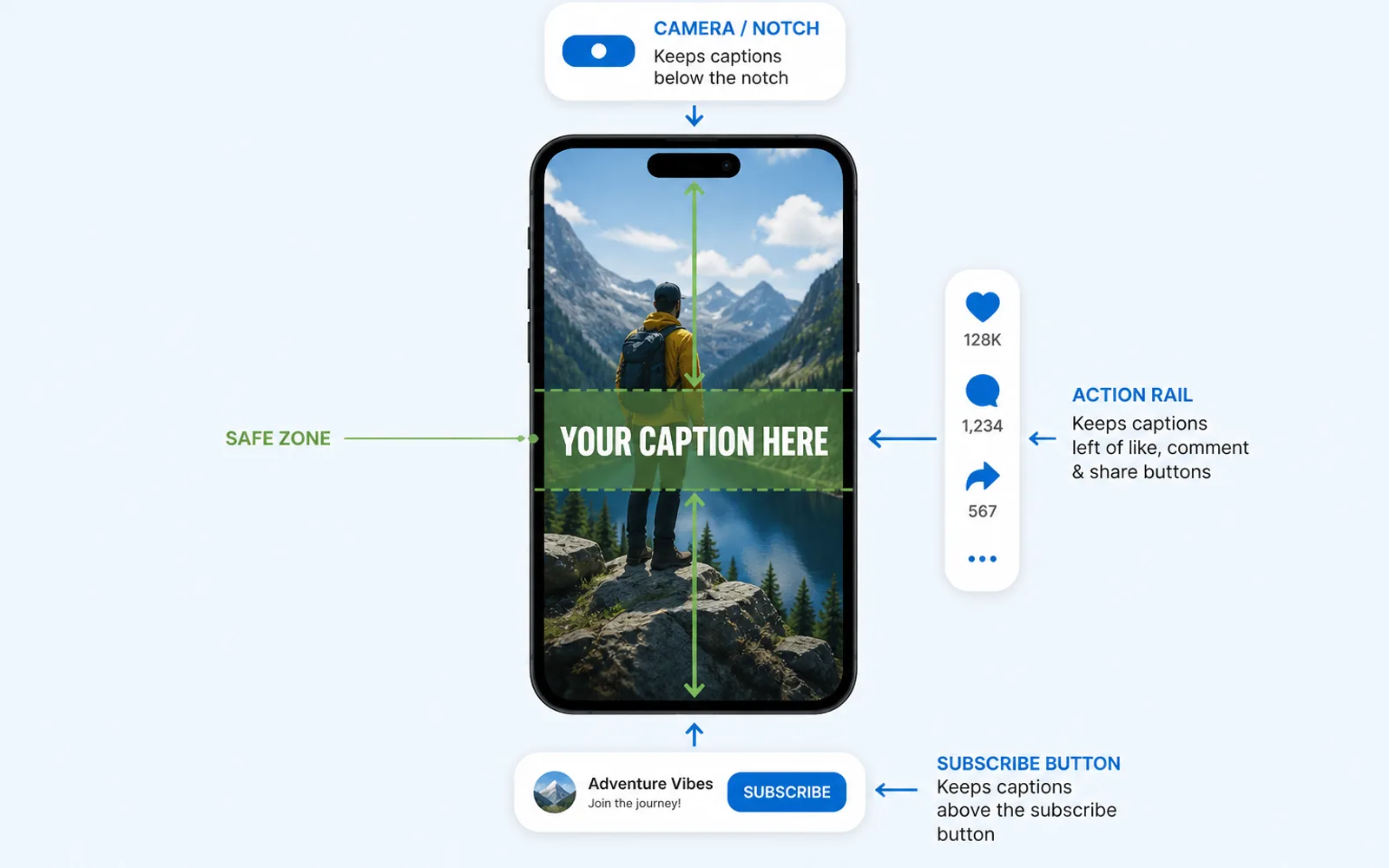
The fastest way to lose a viewer is a caption they cannot read, and most captions get unreadable for one reason: they sit too close to the edge of the frame, where the app's own interface covers them. In a 1080x1920 Short, the safe zone is the central band that the like rail, the subscribe button, the title block and the phone notch never touch. This guide gives you the exact margins, the three caption positions that work, and a way to check a finished Short before you post it.
Why your captions keep getting cut off
You exported a Short where every caption was perfectly placed, and it still looks broken in the feed. That is not bad luck: the frame you export is not the frame people see. On top of your 1080x1920 video, the platform draws its own interface. On TikTok that means an action rail down the right edge and a deep bottom block of captions and buttons. On YouTube Shorts it means the subscribe button in the lower-left, the title block, and the progress bar at the bottom. On top of all of it sits the camera notch of the viewer's phone.
A caption line that touches the top edge, the left or right edge, or the very bottom will sit underneath one of these elements. This is a real, recurring complaint from short-form editors: captions "too close to the top and left/right edges" get "covered by UI or phone camera notches." The caption is there, the viewer just cannot see it, and they scroll on.
The fix is not to make captions bigger. It is to keep them inside the part of the frame that stays visible no matter which device the viewer uses. Reading the words is only the first step — how to add captions to Shorts that hold viewers longer is the second.
The caption safe zone: the band that always survives
The safe zone is the central rectangle of a vertical frame that no platform UI reaches. For a 1080x1920 Short, a practical rule is to keep about 140 pixels clear at the top, roughly 400 pixels at the bottom, about 60 pixels on the left, and around 180 pixels on the right, and to keep caption text inside a centered rectangle around 900 by 1400 pixels. The exact numbers vary by platform and even by phone model, which is why the safe zone is a band, not a single coordinate.
The reason the bottom matters most is that the deepest interface block lives there: on Instagram Reels the bottom strip can reach several hundred pixels, and on YouTube Shorts the subscribe button and title sit in the lower area. If a caption has to be low, place it in the lower-middle third rather than at the actual bottom of the frame. When in doubt, keep every line at least a hand's width from each edge.
Treat the numbers as a starting point, not a law: on some phones the notch reaches deeper and the bottom block is taller, so a margin that clears one device can still clip on another. The safe zone is the intersection of the devices your viewers actually use, not the one you happen to preview on.
The frame also gets re-cropped between platforms: YouTube treats vertical video up to three minutes as Shorts, while Instagram accepts Reels anywhere from 1.91:1 to 9:16. A safe zone chosen for the widest crop is the only one that survives both.
Three caption positions, and when each one works
There is no single best spot, because the position interacts with what the UI covers on each platform. Three positions cover most cases:
- Bottom-center, above the UI bar. The classic caption spot. Workable on Shorts and TikTok only if you raise the captions above the bottom interface block instead of dropping them to the literal bottom edge.
- Lower-middle third. The sweet spot for readability: high enough to clear the bottom UI, low enough to stay in the viewer's natural reading line. This is the position to choose when you are not sure which platform the video will end up on.
- Upper-middle, under the notch. Useful for captions that react to something at the top of the screen, but risky, because the notch and status bar claim different heights on different phones. Prefer it only when the shot demands it.
How to check a Short before you post
A preview window in your editor is not enough, because it does not show the app's overlay. The check that catches most placement problems takes under a minute:
- Watch the finished export on a real phone, not in the editing preview.
- Open it in the actual feed (TikTok For You, Shorts, Reels), not just the full-screen player, because the feed shows the most UI.
- Check it on at least one more device or screen size, since notch and UI heights differ.
- Look at each caption line at its shortest moment: a long line that is fine at full width can clip against the edge on a small screen.
If a caption is unreadable in this check, move the whole block up or in, not just that one line. Consistent placement is what keeps a batch of clips looking like one series rather than a collection of accidents.
A caption workflow that keeps the safe zone automatic
The placement problem becomes a volume problem the moment you ship several Shorts a day — and how many Shorts one editor can realistically make depends heavily on how much of that is repeated manual work. Nudging every caption block into the safe zone by hand is exactly the kind of repetitive task that takes time on every clip and drifts a little each time. The reliable answer is to make the safe zone part of the template, not part of each edit.
This is where ClipFinish fits. The ClipFinish clip production line places captions inside a consistent safe zone and applies the same placement to every clip in a batch, so your caption position is decided once instead of re-made on every export. That removes the repetitive part of the job. What it does not do is write your words or choose which lines to emphasize: captions still need a human to make them accurate, which matters more than ever given that automatic captions are rarely good enough on their own. A tool that fixes placement while you keep control of the content is the honest division of labour.
Caption placement is not a detail: a line that touches the edge is a line that disappears under the UI, and it costs you the viewer just when the hook should land. Keep captions inside the central safe band, test on a real phone in the feed, and bake the safe zone into your workflow so every clip comes out the same instead of nudging captions by hand. ClipFinish does exactly that last step for you — a clip production line that keeps captions in the safe zone on every export.