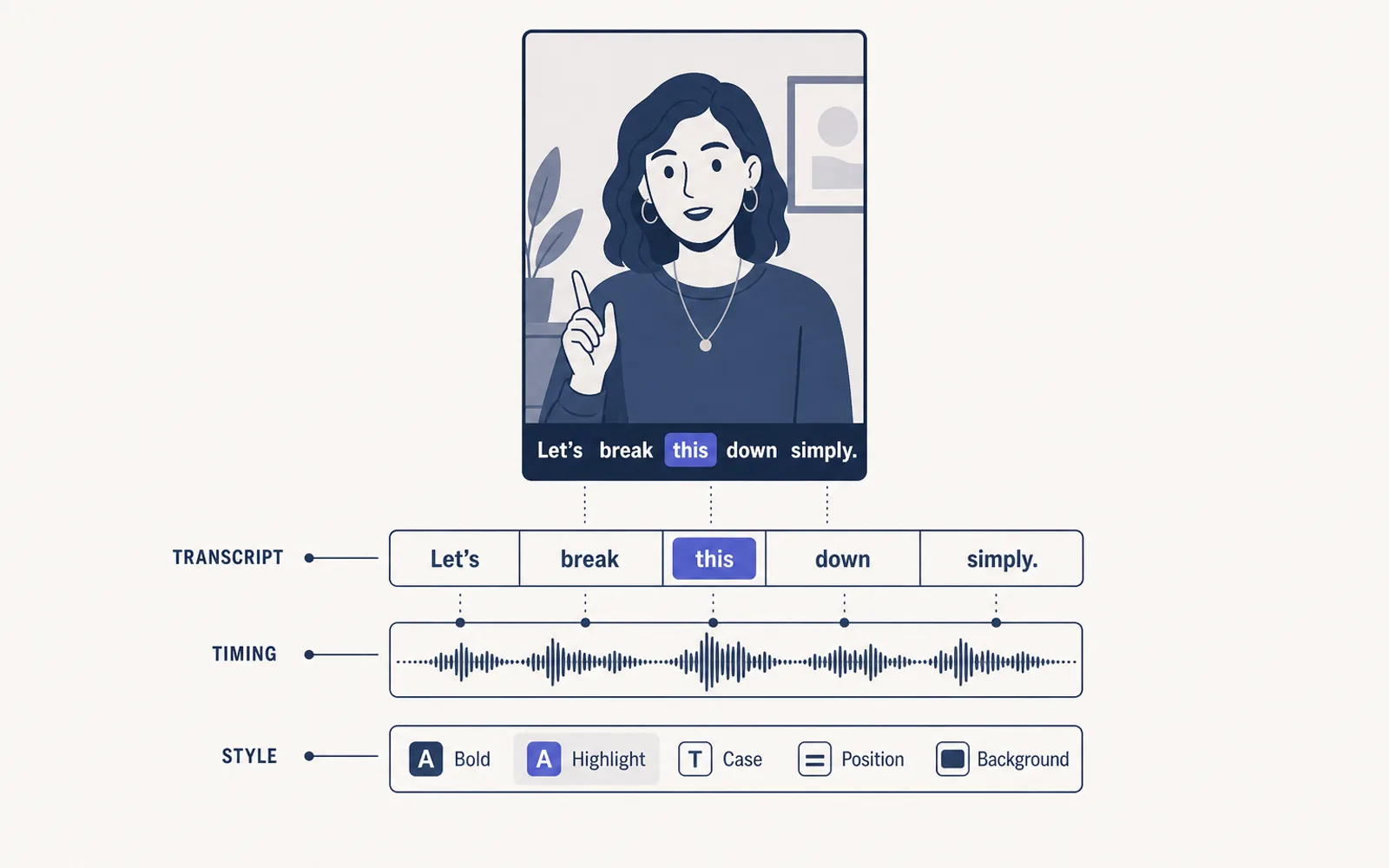
You add captions to shorts by generating a transcript from the audio and styling it onto the frame — in your editor's auto-caption tool or in a dedicated caption tool. But the transcript is the easy twenty percent; timing and style are what keep viewers watching. Here's the workflow we use to caption a short in a few minutes, and how to make it scale when you produce several a day.
Why captions for shorts decide whether anyone watches
Most shorts are watched without sound. The figures vary by platform, but the direction is consistent: on mobile, the large majority of video is consumed muted. Captions are therefore not an accessibility extra; they are how most of your audience actually reads your video. They also pay off in retention — Facebook measured an average 12% view-time lift on captioned videos, a finding collected in 3Play Media's roundup of caption studies — and they make the first seconds comprehensible, which is when the viewer decides whether to keep watching.
92%of mobile video is watched with the sound off — 3Play Media
So "add captions to shorts" is not a checkbox task. Done carelessly it is dead weight; done well it is the difference between a watched short and a skipped one.
How to add captions to shorts: the three routes
You have three practical routes, and most creators use more than one.
- Auto-caption in your editor (CapCut, Premiere, DaVinci, mobile apps): generates a transcript from the audio and lays text on the frame. Fast to start, but you inherit whatever timing and styling the tool defaults to.
- Native platform captions (YouTube automatic captions, TikTok auto captions): the platform reads the audio and shows captions you can enable. Good for accessibility, but they are not burned into the video, not styled, and invisible to someone scrolling with the platform interface off. YouTube documents how to use automatic captioning in its help center.
- A dedicated caption tool: upload, pick a style, export. This is where you get styled, animated, burned-in captions without hand-building text layers.
The mistake most people make is treating the first and third routes as interchangeable. They answer different problems: a transcript you can read is not a caption set that holds viewers.
Why your auto captions look wrong: the timing problem
The most common complaint editors make about auto captions is not missing words — it's timing. Auto-caption tools generate text that lands a beat late, or splits a sentence across the screen at the wrong moment, or wraps three lines over the speaker's face. In CapCut, fixing the speed of an auto caption often means deleting the text and re-adding the animation by hand; several editors describe it as effectively unfixable in the app and switch tools. The result is that people spend longer nudging captions than they did editing the video.
If your tool makes you fight the timing, the honest answer is to change where the captions are generated — not to hand-place hundreds of words one at a time.
A caption workflow that stays fast as your volume grows
Here is the workflow that keeps a caption set correct without scaling your effort with your clip count.
- Generate a clean transcript from the audio; review it once for proper nouns and punctuation.
- Chunk it into short lines — two to five words — so each caption fits a glance.
- Set a timing rule: each caption appears as the word is spoken, with no more than a beat of lead or lag.
- Apply one style to the whole clip: font, color, highlight, position.
- Export, watch the first ten seconds at full screen, and fix the handful of off captions.
The step that eats people is number three — timing — because a 30-second short has six or seven caption changes, and doing them by hand is where the hours go. This is precisely where automation earns its place: a system that chunks your transcript into short lines, times them to the audio and applies the same style on every clip removes the repetitive eighty percent and leaves you the review. That is the part ClipFinish's clip production line automates when it turns a long video into a batch of captioned shorts.
Animated captions that keep viewers reading to the end
Beyond plain text, the caption style that holds attention on shorts is the one-word highlight: each word lights up as it is spoken, so the eye moves with the audio. It is simple to describe and tedious to build by hand — in Premiere it means a text layer per word, which is why editors hunt for faster ways to do "flashy" captions. The principles that actually matter:
- Short lines (two to five words), never a sentence in a block.
- One motion rule — a highlight that follows the spoken word, not ten different animations.
- Readable contrast — a stroke, shadow, or background that keeps the text legible over any footage.
- The same style on every clip, so your channel is recognizable in the feed.
A clear template beats a clever animation every time. Look at the accounts you consider "well captioned": they are consistent, not flashy.
Captions for shorts: quick answers
- Do I need captions on every short?
- Not for accessibility only — most of your audience watches muted, so captions are how the majority reads your video. Skipping them means most viewers get no message at all.
- What's the difference between closed captions and burned-in captions?
- Closed captions are a text track the platform displays on demand; burned-in captions are drawn onto the video itself, so they are visible to everyone and keep their style. For shorts, burned-in is what you want for retention.
- How long should it take to add captions to one short?
- A clean workflow captions a 30-second short in about five to ten minutes including a timing check. If it is taking you an hour, the bottleneck is almost always the tool, not you.
- Can I auto-caption in CapCut?
- Yes, CapCut generates auto captions from the audio. The common pain is timing: fixing the speed of an auto caption often means deleting and re-adding the text by hand. Workable for one clip, painful for a batch.
Captions for shorts are not decoration: they are how most people watch your video, and they decide whether the first three seconds turn into a watch. Do the transcript once, then spend your effort on short lines, clean timing and one consistent style. That combination is what separates a caption set that holds viewers from one that gets skipped. If the repetitive part — cutting, resizing, captioning every clip the same way — is eating your week, a clip production line handles it for you. See how ClipFinish turns a long video into a batch of captioned shorts at ClipFinish.